How to Set Up Permissions in SharePoint: Concepts, Best Practices, and Security Framework for Modern Organizations
 titan_admin
January 22, 2026
9 min read
titan_admin
January 22, 2026
9 min read
titan_admin
January 22, 2026
9 min read
titan_admin
January 22, 2026
9 min read
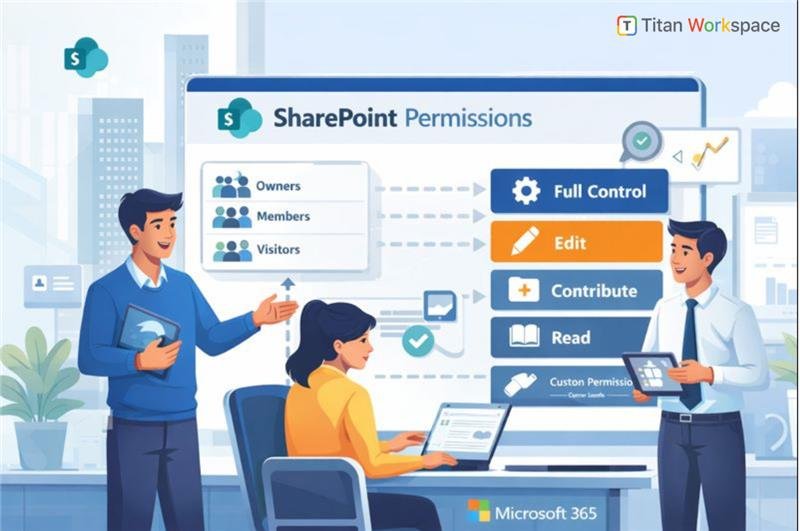
Managing access to information is one of the most critical responsibilities for any organization using Microsoft 365. SharePoint, as the backbone of collaboration and a SharePoint Document Management System, provides a powerful but often misunderstood permission model. Many security issues, accidental data exposure, and compliance gaps arise not because SharePoint is insecure—but because permissions are not designed thoughtfully.
This blog explains how SharePoint permissions work, how organizations should approach SharePoint permissions setup, and what SharePoint security best practices you should follow to build a scalable and secure environment. Instead of focusing only on clicks and screens, we’ll look at strategy, governance, and real-world design patterns for SharePoint user access management.
Modern organizations store contracts, HR documents, policies, SOPs, and confidential data inside SharePoint. When permissions are poorly designed:
A well-planned SharePoint site permission configuration ensures:
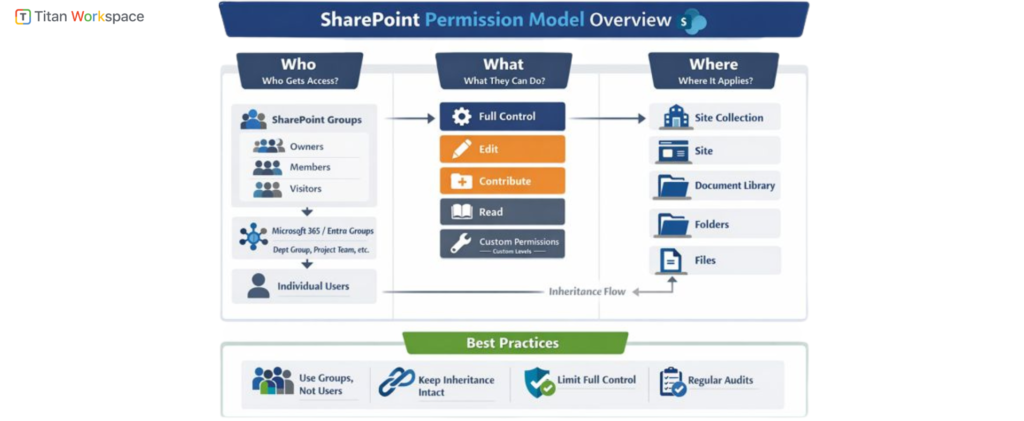
To understand How SharePoint Permissions work, you must first understand its hierarchical security model.
1. Permission Levels (What users can do)
SharePoint permissions are based on predefined or custom permission levels, such as:
Each permission level is a collection of granular rights (view, edit, delete, approve, etc.). Best practice is to reuse standard permission levels rather than create too many custom ones unless absolutely required.
2. SharePoint Groups and Permissions (Who gets access)
Instead of assigning permissions directly to users, SharePoint is designed around groups:
Using SharePoint groups and permissions correctly is the foundation of long-term manageability.
Rule of thumb:
Users → Microsoft 365 Groups / Entra groups → SharePoint Groups → Permission Levels
3. Security Scope (Where permissions apply)
Permissions in SharePoint apply at multiple levels:
Each level inherits permissions from its parent unless inheritance is broken.
Many organizations ask, “How to assign permissions in SharePoint Online?”
The better question is:
“What permission design supports our business processes?”
This approach does not scale.
A strategic SharePoint permissions setup starts with:
1. Design Permissions Around Roles, Not Individuals
Avoid assigning permissions directly to users. Instead:
This is core to SharePoint user access management.
2. Keep Permission Inheritance Intact Wherever Possible
Breaking inheritance increases complexity and risk.
Best practice:
3. Use Sites to Enforce Security Boundaries
If two departments should never see each other’s content:
This dramatically simplifies SharePoint site permission configuration.
4. Limit Full Control Access
Only site owners and IT administrators should have Full Control.
Business users usually only need:
Excessive Full Control is one of the most common SharePoint security mistakes.
5. Align Permissions with Document Lifecycle
In a Document Management System in SharePoint, permissions should evolve:
This alignment improves both security and compliance.
SharePoint Security Settings You Must Understand
While permissions control who can access, SharePoint security settings define how content behaves.
Key security settings include:
Permissions alone are not enough—security is layered.
1. Department-Based Model
Works well for HR, Finance, Legal.
2. Project-Based Model
Ideal for consulting, engineering, and cross-functional teams.
3. Policy & SOP Model
Excellent for governance and compliance use cases.
Setting up permissions is only half the job. How to Manage SharePoint Site Permissions over time is where most organizations struggle.
Without governance, permissions decay quickly.
Sometimes, standard permission levels are not enough.
You may need to Customize permissions for a SharePoint environment when:
Customization should be minimal, documented, and consistently reused.
For regulated industries, permissions support:
A well-structured SharePoint Document Management System with proper permissions ensures:
Many organizations reach a point where internal teams struggle with:
SharePoint permissions consulting helps by:
Consulting is often faster and safer than attempting cleanup after years of misconfiguration.
Unlike file servers:
Organizations that treat SharePoint like a network drive often fail to realize its full security potential.
Understanding How to Set Up Permissions in SharePoint is not about learning where the button is—it’s about designing access, accountability, and governance.
When done right:
If your SharePoint permissions feel complex, inconsistent, or risky, it’s usually a sign that architecture—not technology—needs attention.
Eliminating SharePoint Permission Chaos with Titan Workspace
Managing SharePoint permissions doesn’t have to be complex. Titan Workspace eliminates permission chaos by enforcing role-based access, secure inheritance, and governance-aligned design—helping organizations manage SharePoint site permissions, strengthen SharePoint security best practices, and build a scalable Document Management System in SharePoint with confidence.
FAQ 1: How do SharePoint permissions work in a modern organization?
Answer: SharePoint permissions work through a layered security model that combines users, groups, permission levels, and inheritance. Access is typically granted to SharePoint groups (not individuals), which are assigned permission levels like Read, Contribute, or Edit. These permissions apply at different scopes such as sites, libraries, folders, or files, with inheritance flowing downward unless explicitly broken. This model supports scalable SharePoint user access management and aligns well with enterprise security needs.
FAQ 2: What is the best way to set up SharePoint permissions for a company?
Answer: The best way to set up SharePoint permissions is to design access around business roles instead of individual users. Organizations should use Microsoft 365 or Entra ID groups mapped to SharePoint groups, keep permission inheritance intact wherever possible, and use separate sites as security boundaries. This strategic SharePoint permissions setup improves security, reduces administrative overhead, and supports long-term governance.
FAQ 3: Should permissions be assigned at site, library, folder, or file level in SharePoint?
Answer: Permissions should ideally be assigned at the site or document library level. Folder- and file-level permissions should be used only in rare exception cases because they increase complexity and risk. Keeping permissions higher in the hierarchy simplifies SharePoint site permission configuration, improves performance, and makes audits and troubleshooting much easier.
FAQ 4: How do SharePoint groups and permissions help with security and governance?
Answer: SharePoint groups and permissions help enforce consistent access control by separating “who gets access” from “what they can do.” Groups allow organizations to manage access centrally, reduce errors from direct user assignments, and support automation for onboarding and offboarding. This approach is a core SharePoint security best practice and essential for compliant document management.
FAQ 5: How can SharePoint permissions support a Document Management System?
Answer: In a SharePoint Document Management System, permissions control access throughout the document lifecycle—from draft and review to approval and publishing. By aligning permission levels with document states and business roles, organizations can prevent unauthorized edits, protect sensitive information, and maintain compliance. Proper permissions are foundational to using SharePoint as a secure and scalable Document Management System.
FAQ 6: When should an organization consider SharePoint permissions consulting?
Answer: Organizations should consider SharePoint permissions consulting when they face permission sprawl, accidental oversharing, audit failures, or complex inheritance issues. Consulting helps assess existing SharePoint security settings, redesign permission architecture, implement governance models, and train site owners. This is especially valuable for growing organizations or those operating in regulated industries.
If you’re reading this, there’s a good chance one of two things is true. Either your organization already…
If your organization runs on Microsoft 365 and you’re evaluating audit management software for ISO 9001, you’re standing…
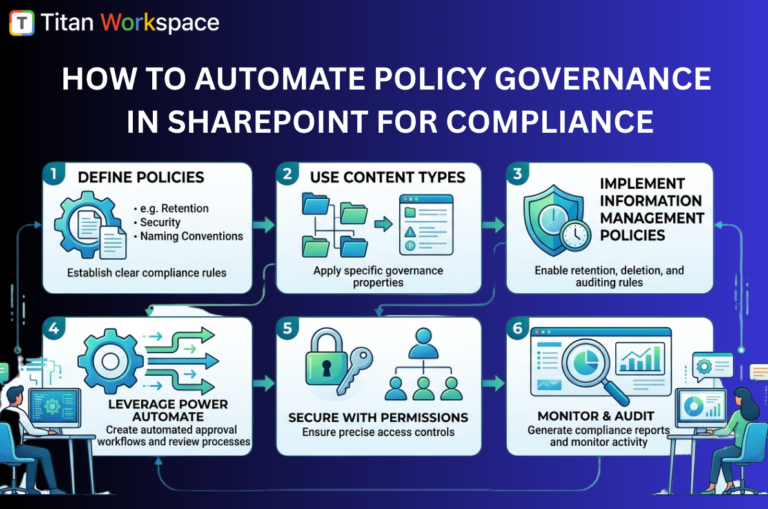
Organizations rely on SharePoint to store, share, and manage critical business information. As data volumes grow, maintaining compliance…